> For the complete documentation index, see [llms.txt](https://academy.synap.ac/doc/llms.txt). Markdown versions of documentation pages are available by appending `.md` to page URLs; this page is available as [Markdown](https://academy.synap.ac/doc/quizzes/creating-a-quiz/question-types/audio-and-video-recording-questions.md).
# Audio and video recording questions
Audio and video question types let candidates record themselves speaking and moving, providing a unique way to assess oral, physical or movement based skills.
{% hint style="warning" %}
The video response question type is only available in our Business or higher plans. Please contact support for more information on changing plans
{% endhint %}
In the Quiz Builder, select 'Add Question' and choose 'Audio recording' or 'Video recording' from the question types. Use the **Question** tab to write your instructions for this question, eg "*Please repeat the following phrase in French"* or "*Please repeat the following phrase using American Sign Language"*. Or alternatively you can use an audio / video stem to provide the candidate with a snippet of media to view / listen to that asks your question.
Select 'Add question' > 'Audio recording'
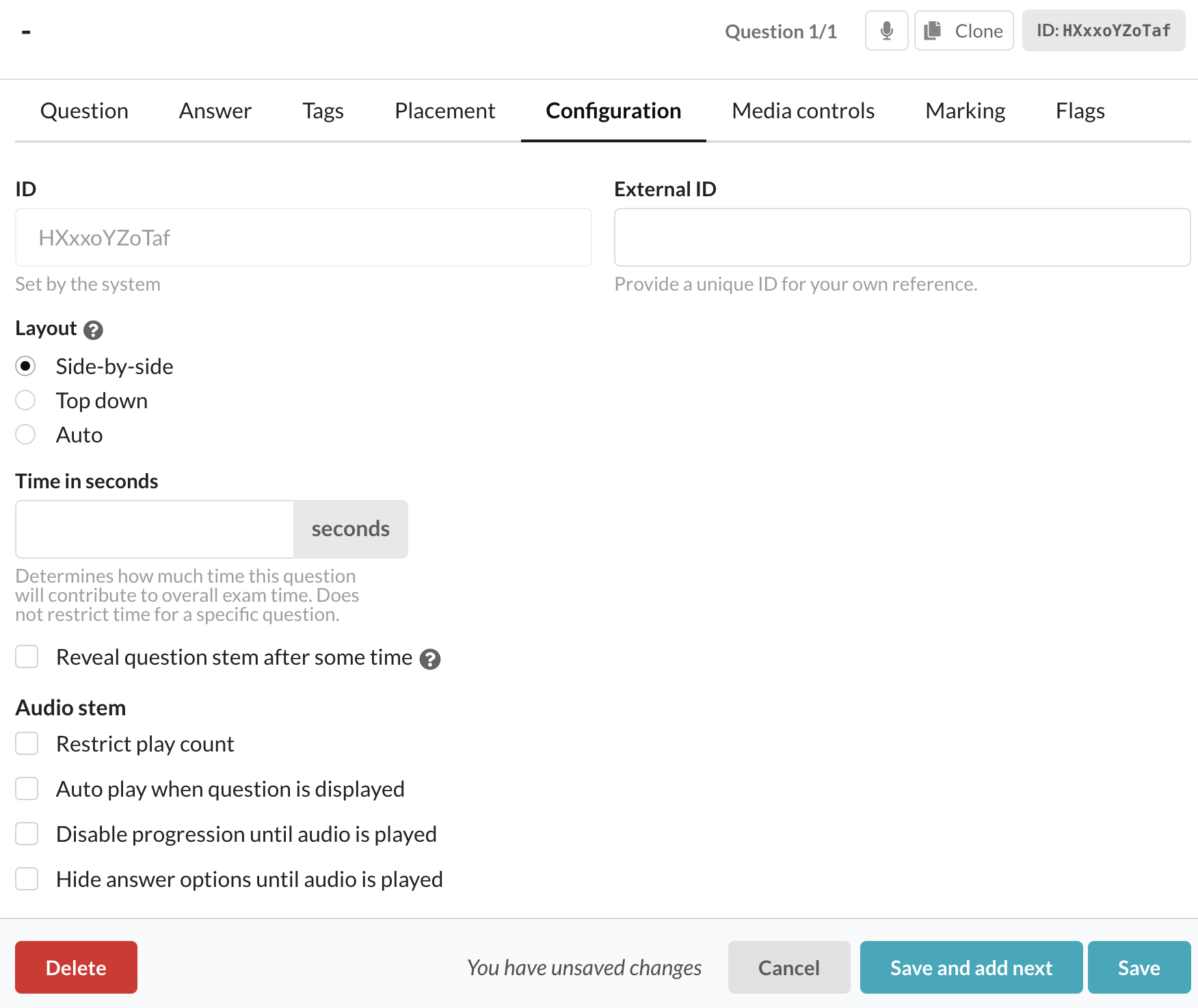
If you are using an **Audio or video stem** make sure to check our the Configuration tab, this will let you set any settings related to the use of an Audio stem. Below is a breakdown of the settings and how they affect the user when enabled.
The configuration tab lets you configure the settings related to your audio stem
| Setting | Description |
| ----------------------------------------- | -------------------------------------------------------------------------------------------------- |
| Restrict play count | Allows you to define the number of times an audio / video stem can be replayed. |
| Auto play when question is displayed | Begins playing the question stem as soon as the question has been displayed to the candidate. |
| Disable progression until audio is played | The candidate can not move to the next question until the audio / video stem has finished playing. |
| Hide answer options until audio is played | Answer options will be hidden until the audio / video stem has finished playing. |
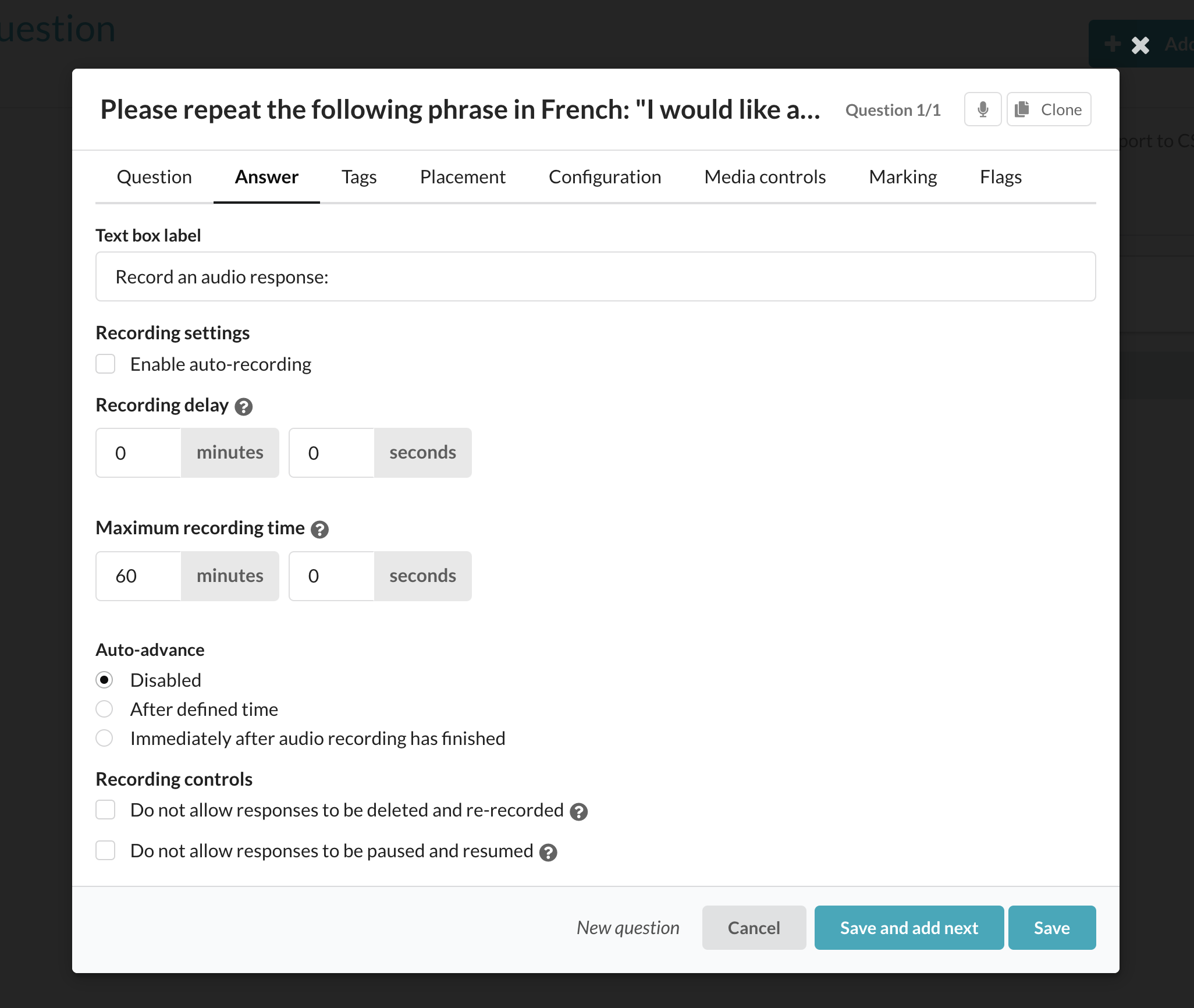
Go to the **Answer** tab where you can define a host of recording settings for your candidates.
There's a range of advanced settings in the 'Answer' tab of the question builder
With so many different settings to take advantage of when using audio or video response questions, you can create a seamless experience for your candidates, or you can give them a bit more flexibility by not enabling certain settings.
Below is a breakdown of the settings and what each one does.
| Setting | Description |
| ---------------------- | ---------------------------------------------------------------------------------------------------------------------------------------------------------------------------------------------------------------------------------------------------------------------------------------------------------------------------------------------------------------------- |
| Enable auto-recording | Once a candidate starts a question their audio will begin recording automatically and wont stop until the maximum recording time has elapsed. They can not stop or pause the recording during this time. |
| Recording delay | When auto-recording is enabled, this delay is automatically enabled. A 3 second delay is applied by default. A candidates recording will not begin until the defined recording delay timer has elapsed. |
| Maximum recording time | The maximum amount of time a candidate can record for. |
| Auto-advance |
Disabled - The candidate will not be moved on to the next question automatically
After defined time - The candidate will be moved on to the next question after a defined amount of time
Immediately after audio recording has finished - The candidate will be moved on to the next question as soon as they have finished recording their audio
|
| Recording controls |
Do not allow responses to be deleted and re-recorded - A candidate will not be able to delete a recorder response or re-record a new one. Effectively giving candidates one attempt to record their audio.
Do not allow responses to be paused and resumed - Candidates will not be able to pause and resume their response recording
|
### Media controls
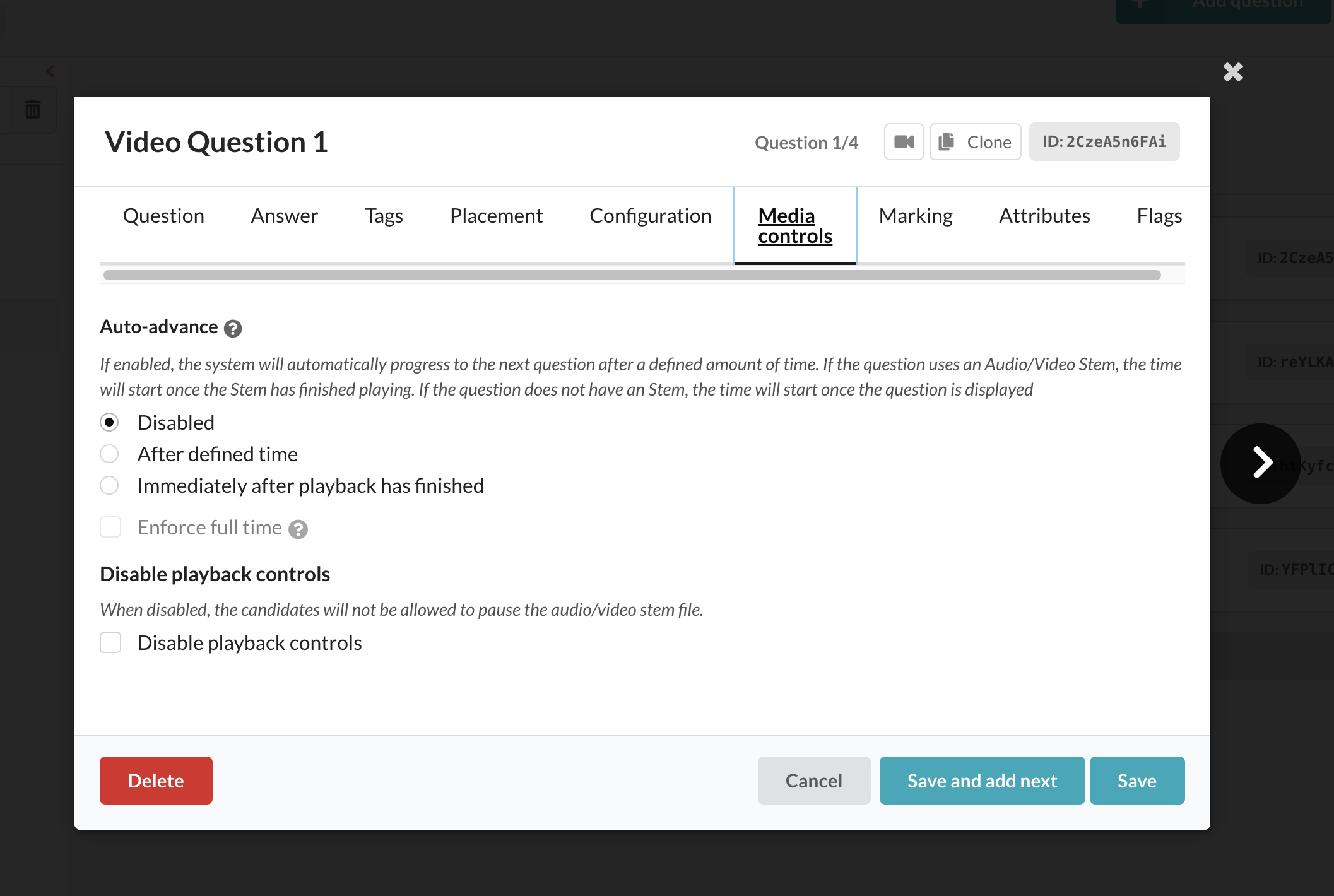
On the media controls menu you can define how the question advances and playback controls
{% hint style="info" %}
The auto-advance settings here apply to the question and the audio / video content in the stem
{% endhint %}
**Auto-advance**
This is set to 'Disabled' by default meaning the candidate must move to the next question manually.
If set to 'After defined time' means that the user will automatically moved onto the next question after the time you define.
'Immediately after playback has finished' means that once the audio / video stem has finished playing the user will be automatically moved onto the next question. This is generally only used for instructional questions
**Disable playback controls**
When disabled, the candidates will not be allowed to pause the audio/video stem file.
---
# Agent Instructions
This documentation is published with GitBook. GitBook is the documentation platform designed so that both humans and AI agents can read, navigate, and reason over technical content effectively. Learn more at gitbook.com.
## Querying This Documentation
If you need additional information that is not directly available in this page, you can query the documentation by asking a question.
Perform an HTTP GET request on the following URL with the `ask` and `goal` query parameters:
```
GET https://academy.synap.ac/doc/quizzes/creating-a-quiz/question-types/audio-and-video-recording-questions.md?ask=&goal=
```
`ask` is the immediate question: it should be specific, self-contained, and written in natural language.
`goal` is what the user is ultimately trying to achieve, the reason they need the answer. Sharing it helps GitBook give you a better, more relevant answer. A goal is most helpful when it describes the outcome the user wants rather than restating the question. For example, with `ask=how do I create an API token`, a goal like `automate deployments from our CI pipeline` lets GitBook tailor the answer to that use case.
The response will contain a direct answer to the question and relevant excerpts and sources from the documentation.
Use this mechanism when the answer is not explicitly present in the current page, you need clarification or additional context, or you want to retrieve related documentation sections.
.gif?alt=media&token=7030bede-5d73-4ee5-9261-eecd5ff82017)